


Automatic PowerBI Dataset refresh using Power Automate’s integration with Power Apps
The goal is to be able to introduce data into a PowerBI report using the Power Apps visual. The app has a form connected to the same data source as the report. Once the new data is loaded into the dataset, it must be automatically refreshed in order to visualize this recently added data.
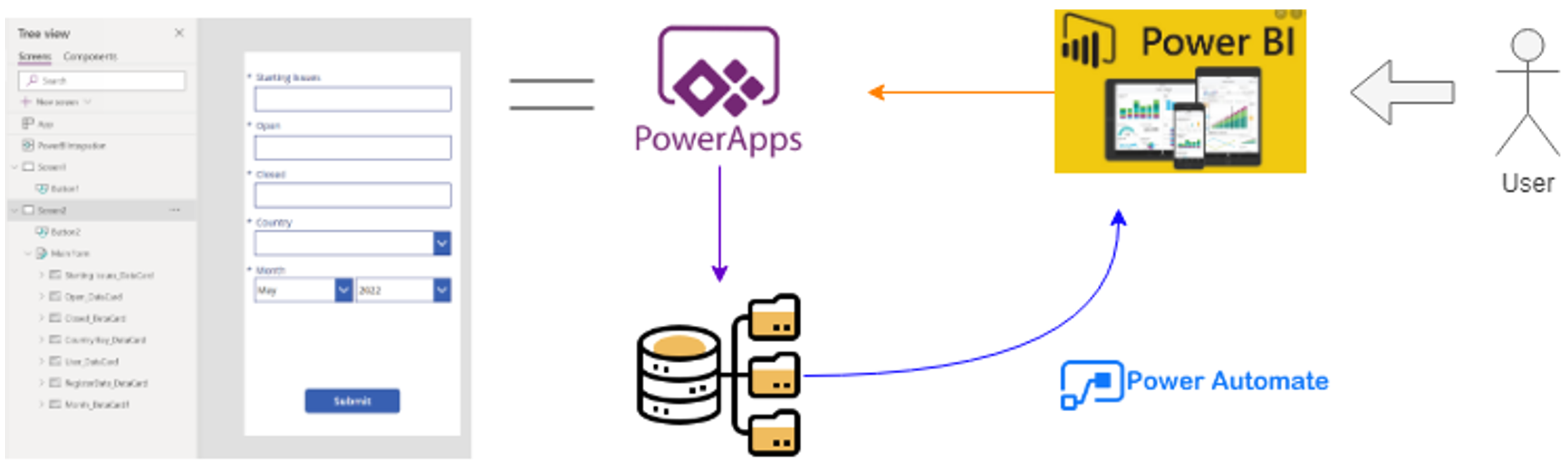
The integration of PowerApps and PowerBI allows an App to be embedded as a visual in a PowerBI dashboard. Additionally, PowerBI data can be passed to this App. In this case, the current user and its country are passed to the PowerApps visual, so both can be included as hidden fields of the form.
Once the App is correctly set up to append data to the same data source as the PowerBI report, the PowerBI dataset needs to be refreshed every time new rows are included. A Power Automate Flow will perform this task by running every time new data is submitted. Therefore, the flow must be created from the Power Apps interface so it can be triggered by the App.
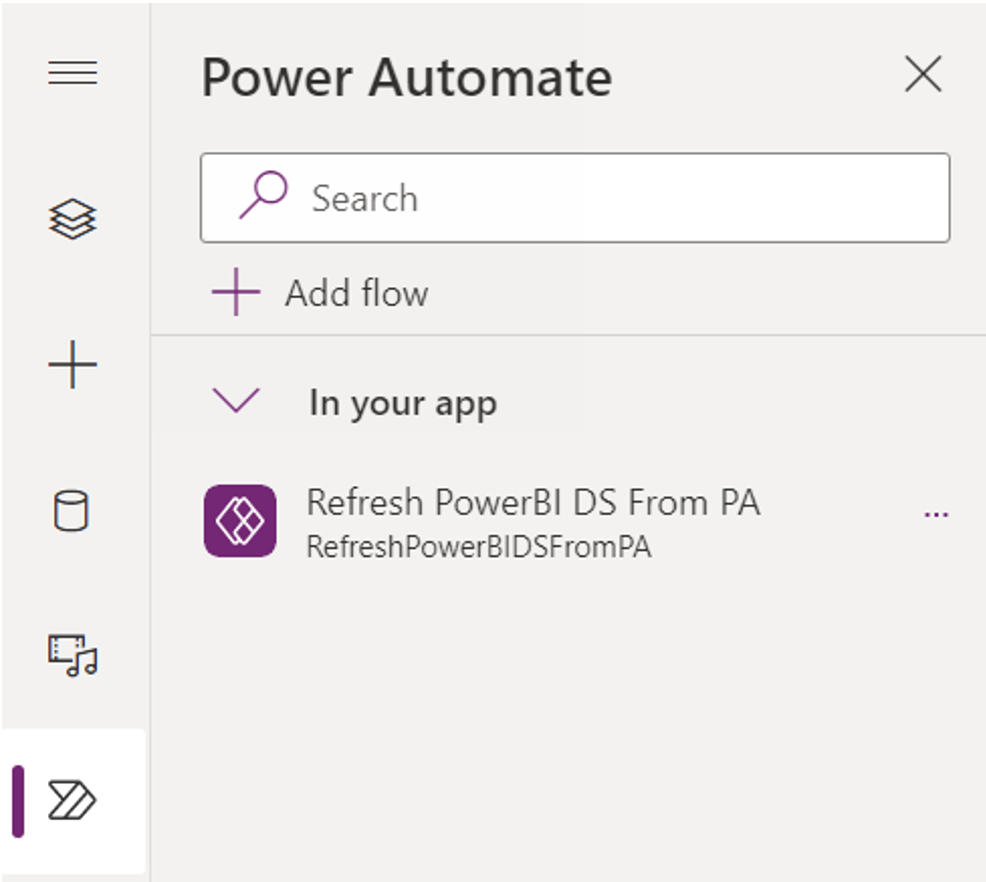
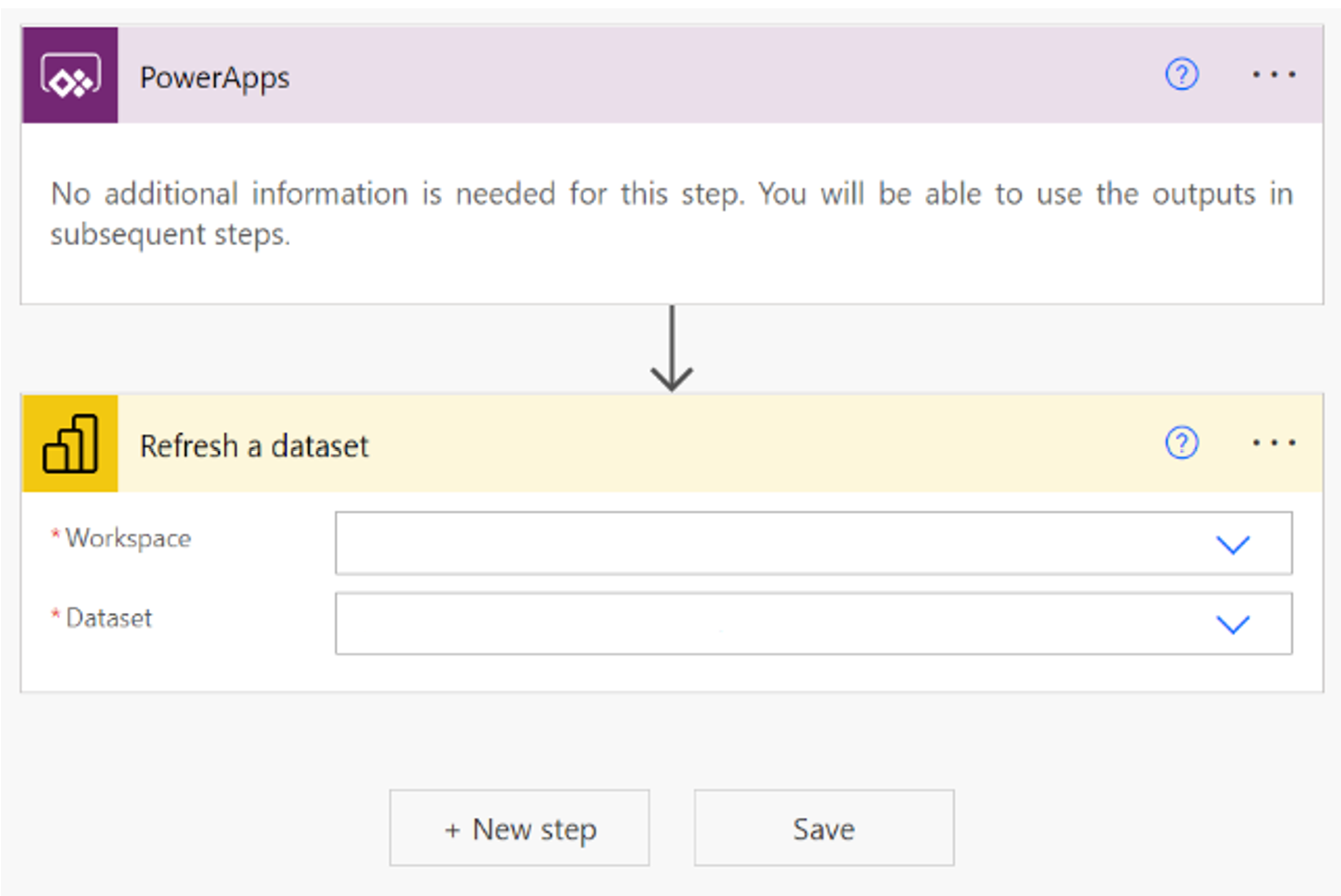
A Power Apps trigger will automatically be included in the flow. Additionally, the “PowerBI - Refresh a dataset” activity is needed to achieve the main goal of the flow. It requires specifying the workspace and dataset of the report.
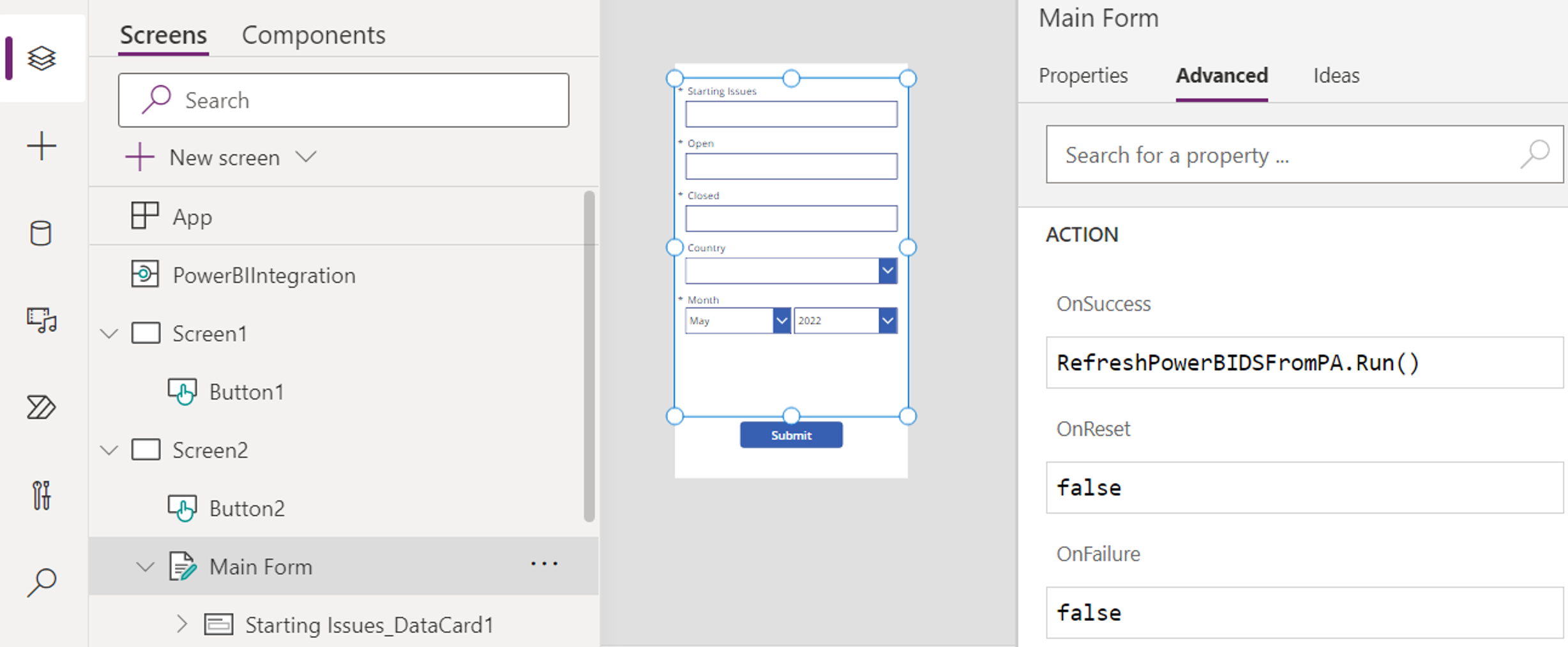
As previously said, the flow will be triggered by calling a certain function inside the App. It will be called on the “OnSuccess” event of the form to prevent erroneous data from being pushed into the dataset.
About the data source
Both Excel Table and SharePoint List were tested as data sources for this matter. The results show that Excel takes about two minutes since the data is included until these changes can be captured by the PowerBI dataset. As opposed to SharePoint List where the changes can be captured as soon as they happen.
Optionally, Microsoft Dataverse can be used as a data source connected via Direct Query to the report. In this case Power Automate would not be needed anymore, because the dataset would not need to be refreshed. Instead, as soon as the new data is submitted it can be seen in the report instantly by refreshing the report page. Its use would come with a lot of advantages, but it would also require acquiring some licenses to use it.
In case of the Manpower organization, we have observed that all members already have a use rights license active. It might come from the organizational o365 license. This license allows them to use the non-premium features of the Power Platform.
The use of the PowerApps connected to Microsoft Dataverse inside a visual in a PowerBI report, is a premium feature that requires a PowerApps premium license. Every user of the app (including developers if they want to test the application) would need this type of license. Note that there is a premium license free trial that lasts 90 days. The following table shows the pricing of the 3 types of premium licenses.
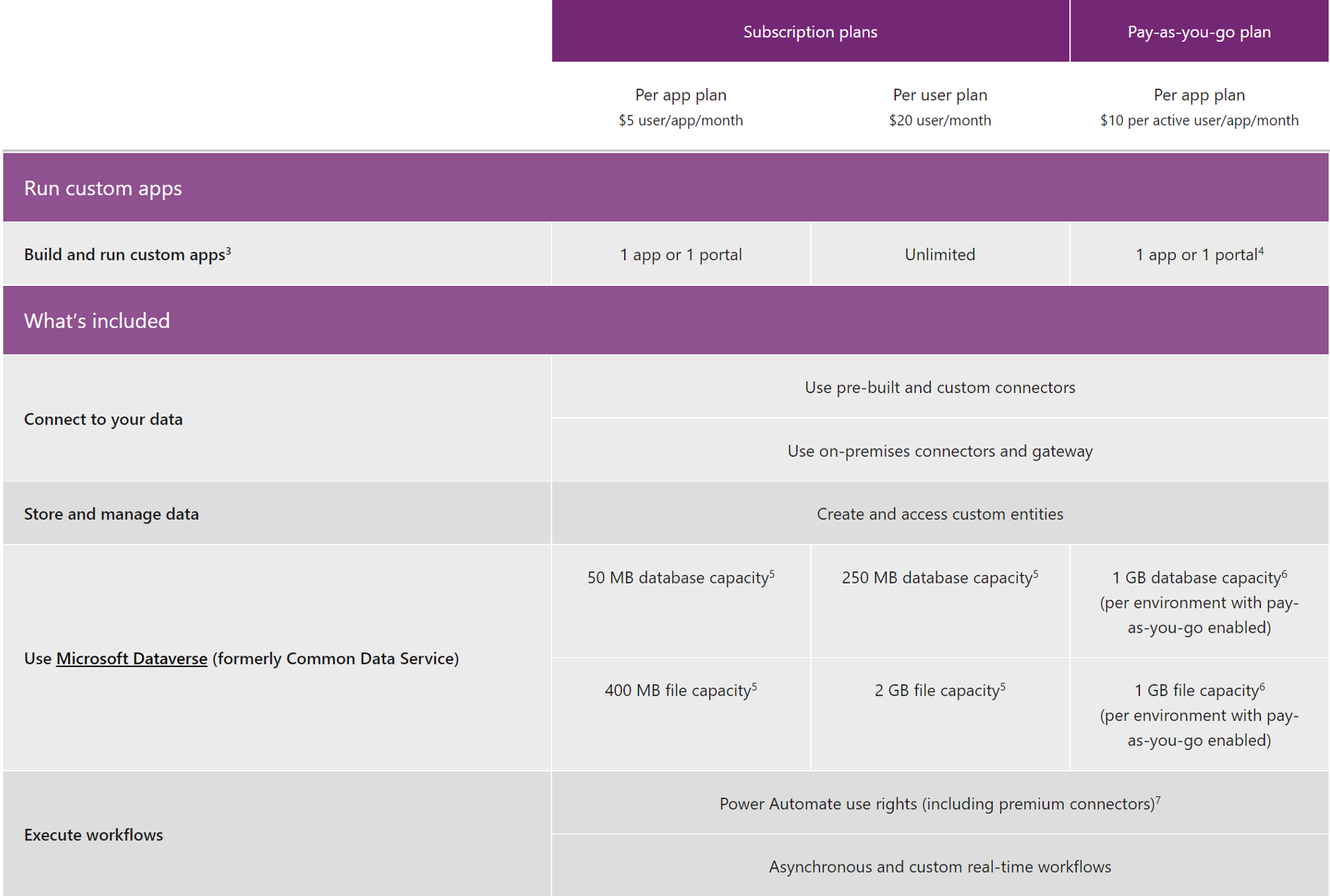
Additionally, every formulary could be consolidated into a single application. With this approach, only the Per App Plan would be necessary for each user.